
Add-ons are extra modules on top of your plan. They have their own section in the left menu, called Add-ons:
| Add-on | What it does | How you get it |
|---|---|---|
| 🔀 Automation flows | Drag & drop auto-replies: keyword → message, buttons, photos, tags, hand-over, store. | Included in Growth and Business plans |
| 🛍️ WhatsApp Store | Products, cart, checkout, orders, stock, delivery, payments — all inside WhatsApp. | Monthly add-on |
| 📅 Bookings | Customers book appointments in WhatsApp; you see them in a bookings dashboard. | Monthly add-on |
Switch on an add-on
1 The red numbers in each screenshot match the numbered steps below it. Click a screenshot to open it full size.
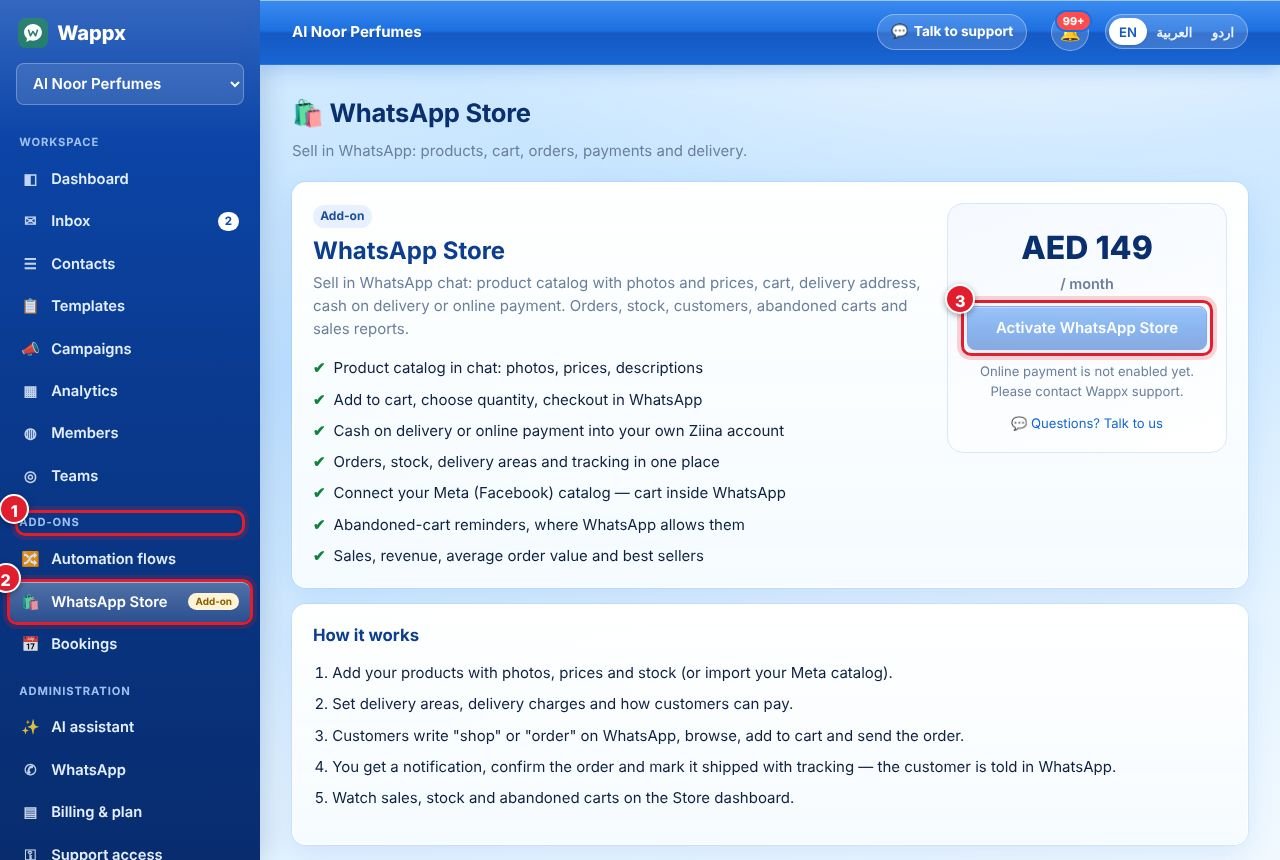
- Find the Add-ons section in the left menu.
- Click the add-on you want, for example WhatsApp Store. Until it is active, it shows an Add-on label and an information page with the price and what is included.
- Click Activate and pay with Ziina. The add-on opens straight away and stays active until the end of the paid period.
You can also activate and extend add-ons from Billing & plan → Add-ons — see Plans, payments and Meta fees.
🔒 Only the Client Admin sees add-ons at first. To let a team member use Bookings or the Store, open Members → Edit on that person and tick the permission.
Didn’t find your answer?
Ask our team