
Everyone on your team can use the same WhatsApp number with their own login.
1 The red numbers in each screenshot match the numbered steps below it. Click a screenshot to open it full size.
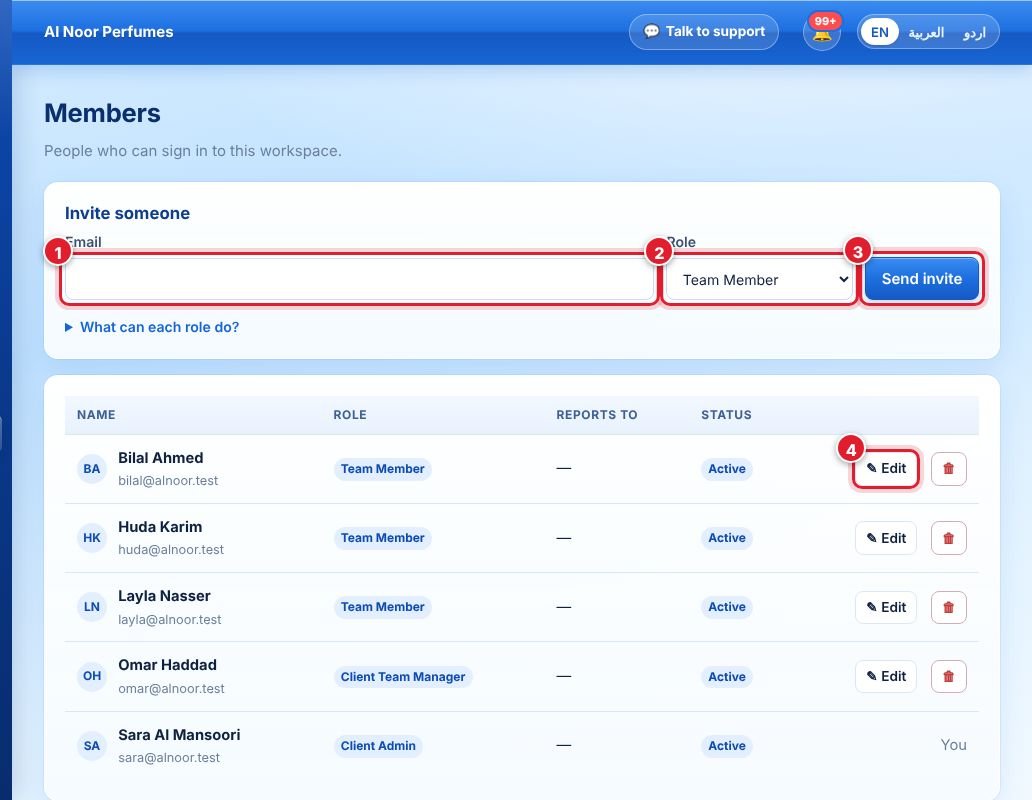
- Open Members in the left menu and type the person’s email.
- Choose their role (see the table below).
- Click Send invite. They receive an email invitation; you can resend it from the pending list.
- Click Edit next to a member to change their role, the manager they report to, and their permissions — for example to give them access to Bookings or the WhatsApp Store.
Optionally create Teams (for example Sales, Support, Riyadh Branch) and add members to them.
Roles
| Role | What they can do |
|---|---|
| Client Admin | Everything, including billing, WhatsApp connection, members, settings and all add-ons. |
| Client Team Manager | Manages the teams they lead and their conversations. |
| User Team Manager | Leads a team and sees the team’s chats. |
| Team Member | Handles the chats assigned to them. Sees add-ons (Bookings, Store) only if an admin allows it. |
Didn’t find your answer?
Ask our team