
Templates are pre-approved messages you need to start a conversation or write after the 24-hour window.
1 The red numbers in each screenshot match the numbered steps below it. Click a screenshot to open it full size.
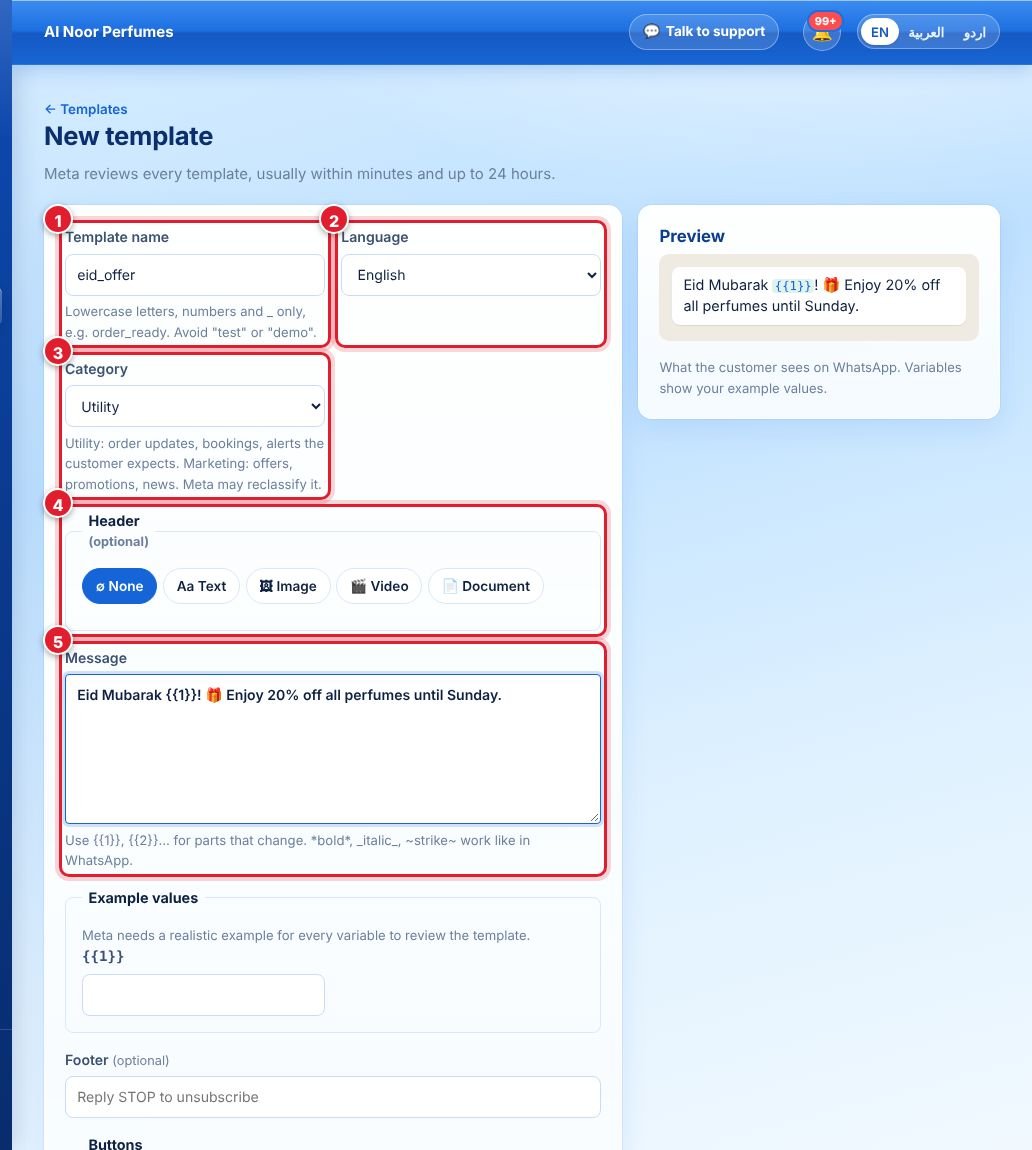
- Open Templates → New template and type a template name — lowercase letters, numbers and _ only, e.g.
eid_offer. - Choose the language the message is written in.
- Choose a category: Marketing (offers, news), Utility (order, booking or account updates) or Authentication.
- Optionally add a header: text, image, video or document.
- Write the message. Use
{{1}},{{2}}for parts that change (e.g. the customer’s name) and give an example value for each. - Add an optional footer and buttons, check the live preview, and click Submit to Meta. Approval usually takes minutes, sometimes up to 24 hours.
Tips to avoid rejection
- Do not start or end the body with a variable, and do not put two variables next to each other.
- Use the correct category — promotional wording in a Utility template is a common reason for rejection.
- Avoid ALL CAPS, excessive emojis and vague text like “Click here”.
Use Sync from Meta to import templates you created in Meta Business Suite.
جواب نہیں ملا؟
ہماری ٹیم سے پوچھیں